
Ever looked at a photo of your pet, a favorite logo, or a simple graphic and thought, “That would look amazing stitched onto a hat or a jacket”? You’re not alone. The process that makes this magic happen is called digitizing. It’s the crucial bridge between a digital image and the tactile beauty of thread on fabric. While it might seem like a mysterious, technical art form reserved for experts, it’s a skill anyone can learn. This guide breaks down the journey of how to convert image to embroidery pattern into manageable, step-by-step instructions.
Think of digitizing as giving a detailed, stitch-by-stitch map to your embroidery machine. You’re the cartographer, and the software is your toolset. Let’s grab our virtual compass and start mapping.
What is Digitizing, Really?
At its core, digitizing is the process of converting artwork into a digital file that an embroidery machine can read. This isn’t a simple copy-paste job. You are not just opening an image in software and hitting a magic “convert” button. True digitizing is an art form that requires decision-making. You are instructing the machine on every single aspect of the stitch-out:
-
Where to place stitches
-
What type of stitches to use (satin, fill, running)
-
What order to stitch them in
-
What direction the stitches should go
-
How to compensate for fabric pull and push
A well-digitized design stitches out smoothly, looks crisp, and lasts a long time. A poorly digitized design can lead to thread breaks, puckering, and a final product that looks messy. The goal is to create a file that tells a clear and efficient story to your machine.
Step 1: Choosing the Right Image
Your entire project’s success hinges on this first step. Not all images make good embroidery patterns. Embroidery simplifies an image; it can’t replicate the millions of colors and subtle gradients of a photograph with perfect fidelity.
Look for images with:
-
Clear, Defined Shapes: Logos, line art, and bold graphics are ideal starting points.
-
Low Complexity: Images with too many small details will get lost in translation.
-
Good Contrast: Distinct areas of light and dark make it easier to define different sections.
Avoid images with:
-
Subtle Gradients and Shadows: Photorealistic images are the most challenging to digitize.
-
Very Thin Lines: Lines thinner than 1-2 millimeters may not stitch properly and could break.
-
Excessive Detail: Tiny text or intricate patterns will likely become a blurry mess.
Pro Tip: Start with a simple, two-color logo. It teaches you the fundamentals without overwhelming you.
Step 2: Preparing Your Artwork
Before you even open your digitizing software, you need to clean up your chosen image. This usually happens in a standard graphic design program like Adobe Illustrator, CorelDRAW, or even a free tool like GIMP or Inkscape.
Your objectives here are:
-
Simplify and Trace: Convert the image into a vector graphic. Vector graphics use paths instead of pixels, allowing you to scale the image up or down without losing quality. This creates clean, sharp lines for the digitizer to follow.
-
Separate Colors: Clearly define the different color areas in your design. This helps you plan your thread changes and the different objects you will create in the digitizing software.
-
Clean Up Lines: Remove any stray pixels, smooth out jagged edges, and ensure all lines are closed paths.
Think of this step as building the blueprint your digitizing software will use to construct the house.
Step 3: The Digitizing Process – Stitch by Stitch
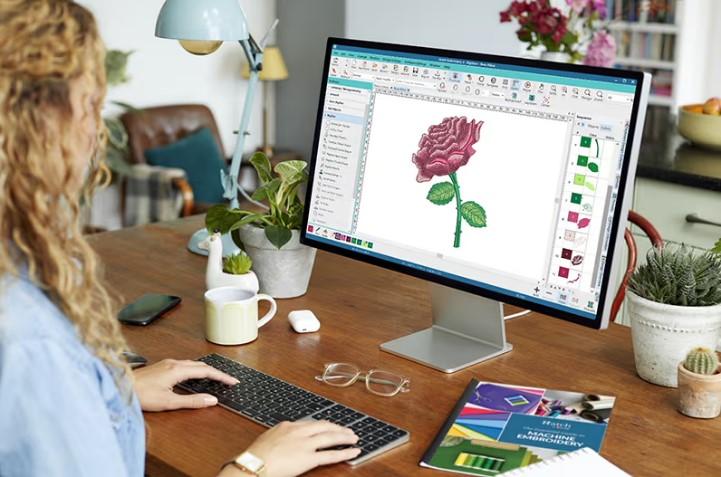
Now we enter the main event. Open your digitizing software (options range from professional-grade like Wilcom Hatch to more accessible ones like Embrilliance or built-in modules in newer machines). Here’s where you translate your blueprint into a stitch map.
A. Setting Up the Work Area
Import your prepared vector file. Set your hoop size to match the one you plan to use on your machine. This is critical because the software needs to know the working area to calculate stitch placement and density correctly.
B. Creating Objects and Defining Stitch Types
You will build your design one “object” at a time. Each object is a defined area that will be filled with a specific stitch type. The three primary stitch types are:
-
Run Stitch: A single line of stitching, perfect for outlines, fine details, and text.
-
Satin Stitch: A series of zig-zag stitches that lie side-by-side, creating a smooth, shiny column. Ideal for text and borders.
-
Fill Stitch: A pattern of stitches that covers a large area. You can control the angle and density of these stitches to create different textures and effects.
Start by creating the foundational elements of your design, often the areas that will be stitched first and sit underneath other layers.
C. Mapping the Stitch Sequence
The order in which your machine sews is paramount. The golden rule is: Stitch from the bottom up. This means backgrounds and underlay stitches go first, followed by larger fill areas, and finally, top-level details and outlines last. The software allows you to easily adjust this sequence.
D. The Magic of Underlay
Underlay is the secret ingredient of professional-looking embroidery. It’s a base layer of stitches that you never see in the final product, but it does all the heavy lifting. Underlay:
-
Stabilizes the Fabric: It anchors the fabric to the stabilizer, preventing shifting and puckering.
-
Creates a Level Surface: It provides a firm, consistent base for the top stitches to lie on, improving the finish.
-
Prevents Show-Through: For light-colored top stitches on dark fabric, a solid underlay can block the dark fabric from showing through the threads.
Neglecting underlay is one of the most common mistakes beginners make.
E. Fine-Tuning: Pull Compensation and Density
Fabric is not a static canvas; it pushes and pulls as the needle penetrates it thousands of times.
-
Pull Compensation: This setting slightly oversizes fill areas to account for the fabric being pulled inwards by the stitches. Without it, small gaps can appear between different colored objects.
-
Stitch Density: This refers to how closely packed the stitches are. Too dense, and the design becomes stiff and can puncture the fabric. Too sparse, and the fabric will show through. Finding the right balance for your specific fabric is key.
Step 4: The Test Stitch-Out
You’ve created your first digital file! Do not, under any circumstances, stitch it directly onto your final project. The test stitch-out is non-negotiable.
Stitch your design out on a piece of the exact same fabric you plan to use for the final product, with the same stabilizer. This is your prototype. As it stitches, watch for problems. Afterward, analyze the result:
-
Are there gaps between colors? (You need more pull compensation).
-
Is the fabric puckering? (You may need less density, better stabilizer, or adjusted tension).
-
Are the details blurry? (You may need to simplify the design or adjust stitch types).
-
Does the outline not sit perfectly on the fill? (You need to adjust the stitch sequence).
Go back to your software, adjust the settings based on what you saw, and test again. This iterative process is what separates amateurs from pros.
Step 5: Final File Export and Stitching
Once you are completely happy with your test stitch-out, it’s time for the final act. Save or export your design in the machine format you need (.PES for Brother, .VIP for Husqvarna Viking, .DST for industrial machines, etc.). Hoop your final garment, load your file, and watch your digital creation become a physical reality.
Conclusion: Your Journey from Pixels to Thread
Digitizing is a beautiful fusion of technical skill and artistic vision. It’s a process that rewards patience, practice, and a keen eye for detail. Your first few designs might not be perfect, and that’s okay. Every test stitch-out teaches you something new about how thread interacts with fabric and how the machine interprets your commands.
Remember, the goal isn’t to perfectly replicate a photograph, but to capture its essence in the unique and timeless medium of embroidery. So, find a simple image, open your software, and take that first step. The rewarding click of the embroidery machine starting on a design you created from scratch is a feeling like no other.
Absolute Digitizing